
Join the PIV Mobile beta
Join our beta program to download and use PIV Mobile on your own iPhone, then tell us what you think of the app and the enrollment experience. Getting in takes one short form.
Free · iPhone only · Private beta — we’ll send you a personal invite
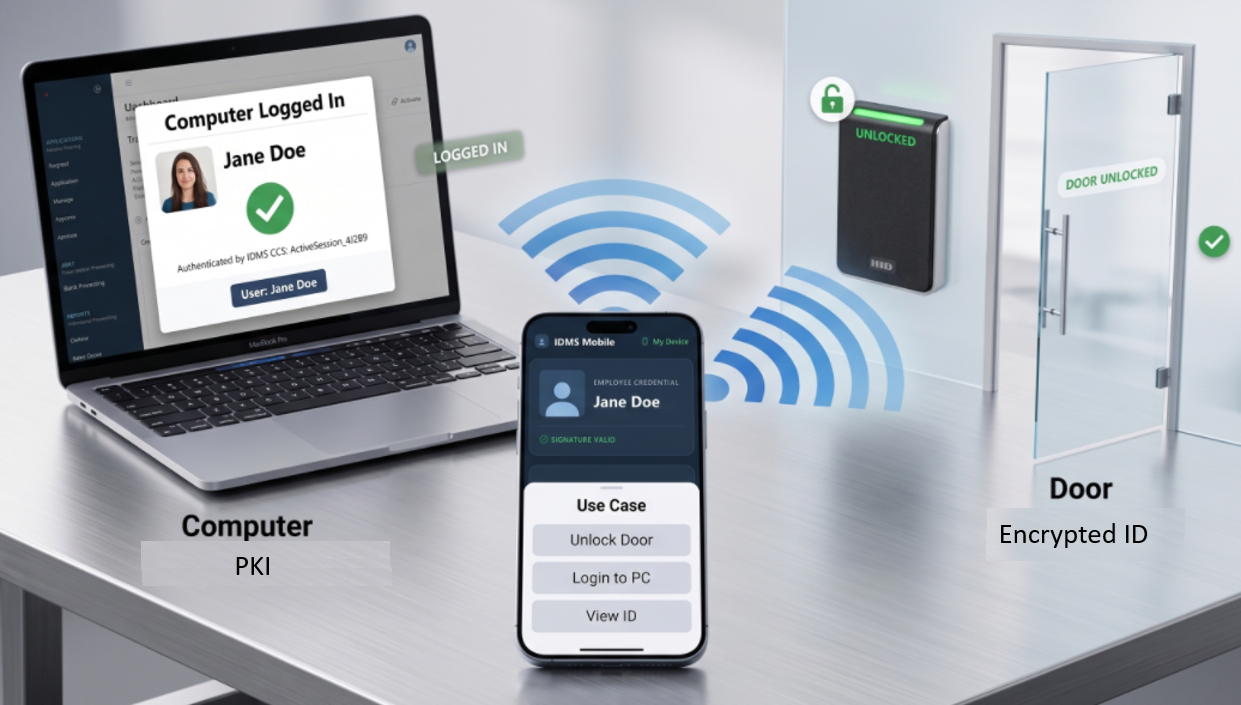
Test credential distribution end to end
This beta program enables your organization to test the PIV Mobile Credential distribution process end to end — from the invite, through enrollment on a real iPhone, to a working credential you can use.
Three credentials on one iPhone
When complete, your app will have PKI credentials for logical access, HID Mobile Credentials for physical access, and an ISO-compatible mDOC credential for in-person verification.
PKI credentials
Sign in to computers and systems with certificate-based credentials on your phone.
HID Mobile Credentials
Open doors on readers that support HID mobile access.
mDOC credential
An ISO-compatible digital ID you can present from the phone itself.
Two things, before you start
That, and about five minutes.
An iPhone
Running iOS 16 or later. PIV Mobile is iPhone-only for this beta.
An email address
We’ll send your private beta invite and your Set-up code there.
Four steps from this page to PIV Mobile on your Home Screen
Every invite is personal, so it starts with a short request.
You request access
Fill in the short form at the bottom of this page — name, work email, organization. That’s it.
We add you to the beta
We add you to the beta and reply to confirm.
You get an invite from TestFlight
You’ll get an invite email from TestFlight (Apple’s free app for trying pre-release apps). Tip: check your spam folder if you don’t see it.
Install TestFlight, then PIV Mobile
Install TestFlight if prompted, then install PIV Mobile — the invite email walks you through it.
Once you have the PIV Mobile app, setup takes about a minute
Built so your credential can only ever live on your iPhone.
Open PIV Mobile and tap “Get my request code.”
So your Set-up code reaches your device — and only your device — PIV Mobile first creates a private request code right on your iPhone. This is what keeps your credential yours: nothing leaves your phone that would let anyone else set it up.
Email your request code.
Email your request code to support@cyberarmed.com. Your Set-up code will then be generated.
Check your email for your Set-up code.
Within a few minutes you’ll get an email with your Set-up code. Can’t find it? Check your spam or junk folder.
Enter your Set-up code in PIV Mobile.
Back in the app, tap the button to enter your code, then type in the Set-up code from your email.
Choose a PIN.
Create a PIN you’ll remember. You’ll use it to approve secure actions — like unlocking your computer — the same way a chip card asks for a PIN.
You’re all set!
Your credential now appears in PIV Mobile. Your keys are kept in your iPhone’s secure hardware and never leave your device.
Good to know: computer sign-in and doors work with equipment your workplace sets up. During the beta you can complete setup and try your digital ID on the phone itself.
Is PIV Mobile safe?
Yes. Here’s what it can and can’t do on your phone, and why your credential stays yours — even if your phone doesn’t.
What PIV Mobile does — and doesn’t do — on your phone
It stays in its lane.
PIV Mobile doesn’t read your photos, contacts, messages or location, and it doesn’t track where you go. It has one job: holding your work credential.
It doesn’t change your phone.
Nothing else on your iPhone is touched. If you delete PIV Mobile, everything it created goes with it.
It only communicates when you’re authenticating.
PIV Mobile talks to the outside world only when you set it up and when you authenticate — signing in, opening a door, showing your ID — and only to the organizations you register it with, over an encrypted connection. It doesn’t run in the background sending data anywhere, and we don’t sell, share, or even see your personal information.
Why it asks for Bluetooth.
Bluetooth is how your phone talks to your computer when you sign in — that’s the only reason PIV Mobile asks for it. It’s safe to allow: connecting to a computer needs a one-time pairing you approve, everything sent is encrypted so nothing nearby can read it, only computers you’ve paired can talk to your phone, and you can cut one off any time from within the app.
Even we can’t see your credential.
The keys behind it are created and stored in the Secure Enclave — a separate security chip built into your iPhone’s silicon that even the rest of the phone can’t read. They can’t be copied off the device: not by you, not by us, not in a backup.
Why no one else can use your credential
It’s tied to your phone, and only your phone.
Setup starts with a request code your iPhone creates itself. You email it to us and we send back a Set-up code — but that Set-up code is useless on any other device, because the request has to come from yours.
It can’t be copied.
Because the keys live in your phone’s silicon, the credential is locked to that one device. Copying it onto another phone simply doesn’t work.
Your PIN guards every use.
Signing in to a computer needs the PIN you chose — just like the chip card in your wallet. Too many wrong tries and it locks.
There’s no password to steal.
Nothing to guess, phish, or leak in a data breach. Sign-in uses keys that never leave your phone.
You’re in control.
See your credential in the app and delete it whenever you want. Deleting it removes it from the phone — and a lost phone can’t sign in without your PIN.
Questions
Short answers to the things people ask before they start.
How do I get in?
Fill in the Request beta access form at the bottom of this page. We review requests and send a personal TestFlight invite. Spots are limited during the private beta.
What is TestFlight?
It’s Apple’s official, free app for trying apps before they’re released. Once we invite you, you’ll install PIV Mobile through TestFlight — we’ll send simple instructions.
Is this safe? What happens to my information?
Your credential and keys are created and stored in your iPhone’s secure hardware and never leave your device. We designed PIV Mobile security-first — see how it protects you.
Is PIV Mobile free?
Yes — it’s free to use during the beta.
I didn’t get my Set-up code email.
Give it a few minutes and check your spam or junk folder. Set-up codes are time-limited for your security — if yours has expired, open PIV Mobile and tap Get my request code again. Still stuck? Email support@cyberarmed.com.
Does it work on Android?
Not yet — PIV Mobile is iPhone-only during the beta.
TestFlight says the beta “expired” or won’t open.
Beta builds refresh periodically. Open TestFlight and update PIV Mobile if prompted. If it still won’t open, email support@cyberarmed.com and we’ll send a fresh invite.
How do I remove it?
Delete PIV Mobile like any app by pressing and holding its icon. You can remove TestFlight the same way.
Found a bug or have an idea?
In TestFlight, take a screenshot and tap Share Beta Feedback — or email us anytime at support@cyberarmed.com. This is a beta, and your feedback shapes what ships.
Ready to get started?
Tell us who you are and we’ll reply to confirm. Your personal TestFlight invite follows by email — to the address you enter here. Spots are limited during the private beta.
Prefer email? Write to support@cyberarmed.com from the address you’d like your invite sent to.
Need a refresher first? Read about PIV Mobile · © CyberArmed